
 Photo credit: Air Photography
Black Friday Deals: DJI Flip $349, Mini 4K $359, Mini 3 $439, Skyrover S1 $349, X1 $539
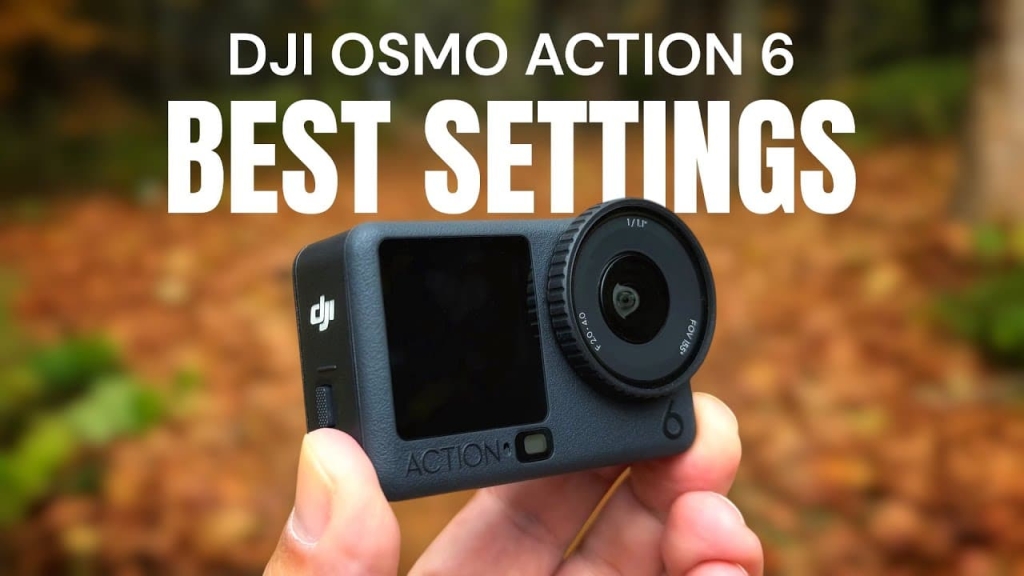
Good day, folks. Shawn here from Air Photography. The DJI Osmo Action 6 does an incredible job capturing footage on auto. If you’re brand new to action cameras, I wouldn’t focus too much on the settings right away. Just get out and enjoy your camera.
But if you want to take your footage to the next level, there are a few simple adjustments that can make a real difference. Here’s my guide to the best settings for the Osmo Action 6.
Turn Up Your Bit Rate
By default, the camera is set to a standard bit rate. Turning it up to high will increase overall video quality.
To change it, swipe down, tap on settings, and scroll until you find the bit rate option. Tap on it and set it to high.
Keep in mind that a higher bit rate results in larger video files and generates more heat in the camera.
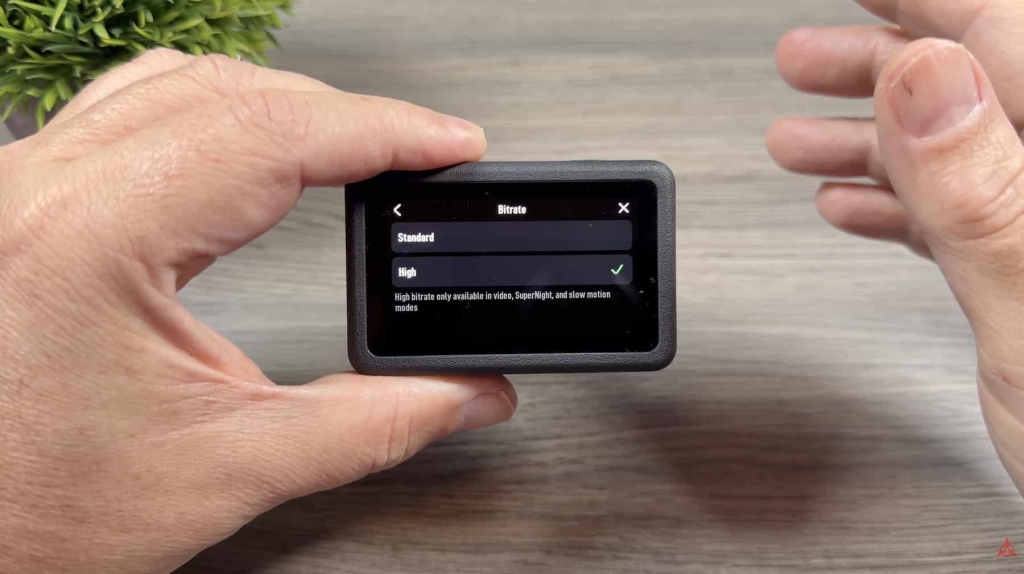 Photo credit: Air Photography
Enable Video Quality Priority
This is a new feature on the Osmo Action 6. Access it through the settings menu and look for the quality priority option.
Enabling this setting increases overall video quality. However, it uses more power and causes the camera to run hotter. You may not want to use it for long recording sessions, especially if the camera is stationary.
Resolution and Frame Rate
I always film in 4K. By default, new cameras are set to 1080p, which is adequate for social media. But you’ll get better overall quality filming in 4K, even if you export at 1080p. The downscaled footage still looks better.
I also film at 60 frames per second. This gives me flexibility in post-production. I can slow the footage down if needed, and I find it generally looks more pleasing.
Stabilization Levels
At the top right of the screen, you can set your stabilization level and field of view.
Rock Steady is where I film most of the time. It provides good stabilization while leaving a little natural movement in the footage.
Horizon Steady keeps your horizon perfectly level through a complete 360 degrees of camera rotation. The trade-off is heavy cropping, so you won’t get a very wide field of view. It’s not ideal for every situation, but worth trying for certain activities.
Field of View Options
For most activities, I film in wide. It gives a nice mix of field of view without too much distortion.
The Osmo Action 6 introduces natural wide, which helps eliminate vertical distortion. That’s a solid option as well.
Standard dewarp removes all distortion completely. Ultra wide gives you the widest field of view but introduces significant distortion.
For most situations, either wide or natural wide will serve you well.
Image Adjustment Settings
Action cameras are often oversharpened out of the box. You can fix this in the settings under image adjustment.
DJI calls sharpening “texture.” I set mine to -1. You could go as low as -2. The logic is simple: if footage is oversharpened, you can’t fix it. If it’s slightly undersharpened, you can always add sharpening in post.
For noise reduction, I typically use -1 or -2. In darker environments like under tree canopy, I’ll go to -2. In bright, open conditions, I’ll use -1.
Pro Mode: Exposure and White Balance
One nice thing about the Osmo Action 6 is that you’re always filming in 10-bit color in video mode. Previous generations required manually enabling this.
In pro mode, I make a few adjustments:
Exposure: I set mine to -0.3. Action cameras tend to overexpose slightly, and I find the footage looks better with this adjustment.
ISO: I leave on auto. It does a good job.
White Balance: DJI cameras have a built-in color temperature sensor that’s quite accurate. The problem is it can shift during recording depending on your environment.
I lock my white balance at 5600K. That’s a middle-of-the-road temperature that works for most scenarios and prevents color shifts.
You can get creative here. For sunset or twilight footage, bump it up for warmer tones. For snow, drop it to 5100K or 5000K for a cooler look.
Flat Color Profile: D-Log M
If you want maximum control in post-production, you can enable D-Log M in the color settings. This films in a desaturated profile with more dynamic range, allowing you to grade the footage exactly how you want.
DJI makes color grading accessible through the Mimo app’s color recovery feature. You get the benefits of a flat profile without complex editing.
New to the Osmo Action 6 is a color recovery preview. When enabled, it shows you a colorized preview on screen while still saving the flat profile to your memory card.
Aspect Ratio Options
The Osmo Action 6 now lets you change aspect ratio directly on the camera. Previously, you had to physically rotate the camera to film vertical content.
16:9 is the standard aspect for most filming.
Portrait mode films vertical content regardless of camera orientation. Great for short-form content creators.
Landscape mode locks to horizontal regardless of camera position.
Custom mode films in a square aspect. This is clever because you can crop to either landscape or vertical in post. The Mimo app makes this easy.
You can also enable crop lines to preview how your square footage will look when cropped to landscape or portrait.
Final Thoughts
These settings will help improve your footage without any color grading. But remember, if you’re brand new to action cameras, don’t get overwhelmed. The Osmo Action 6 performs excellently with default settings.
Get out, enjoy your camera, and capture some video. You can always fine-tune settings as you learn what works for your style of shooting.